![MenuMetric_500_130.png]](https://support.menumetric.com/hs-fs/hubfs/MenuMetric_500_130.png?height=50&name=MenuMetric_500_130.png)
Product rates can expire at different times depending on the vendor. When this happens, pricing may become outdated and can cause contracting errors. To avoid this, make sure products are re-rated regularly—especially anytime changes are made on the Sale Information page, which is the first step of the deal. Re-rating refreshes pricing and helps ensure contracts generate correctly. One of the most common causes of contracting issues is products that were not re-rated, so this should always be the first step when troubleshooting.
To avoid these common errors and ensure accurate pricing, follow the steps below to re-rate products in the MenuMetric.
Step 1: Open the Product Rating Screen
Re-rating can be completed from either the eForms page (where contracting is completed) or the Layout page (where product rating is performed). Select the blue pencil icon next to the product to open the rating options. *This screenshot is from the eForms page*

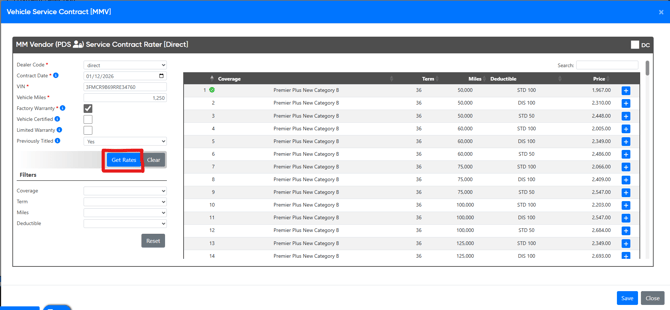
Step 2: Get Updated Rates
Once the rate box opens, click the blue Get Rates button on the left-hand side. This step must be completed regardless of whether a rate looks like it is selected on the right hand side (indicated by the green checkmark).
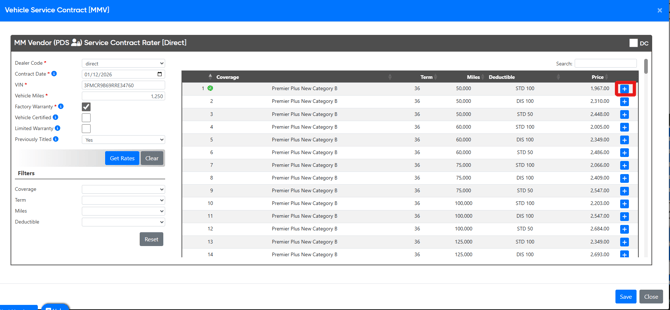
Step 3: Select Updates Rate
After clicking the blue Get Rates button, select the updated rate on the right-hand side by clicking the blue + icon next to the desired rate. This step must be completed regardless of whether a rate looks like it is selected on the right hand side (indicated by the green checkmark).
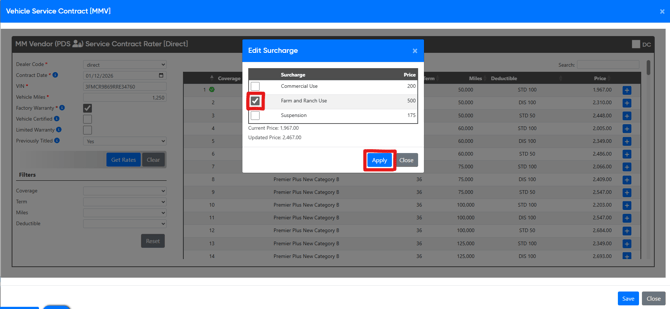
Step 4: Apply Surcharges (If Applicable) and Save the Updated Rate:
If the selected rate includes surcharges, be sure to check the appropriate surcharge box. If no surcharges apply, click the blue Save button on the bottom right to complete the re-rating process.
Surcharge Box:
Blue Save button:
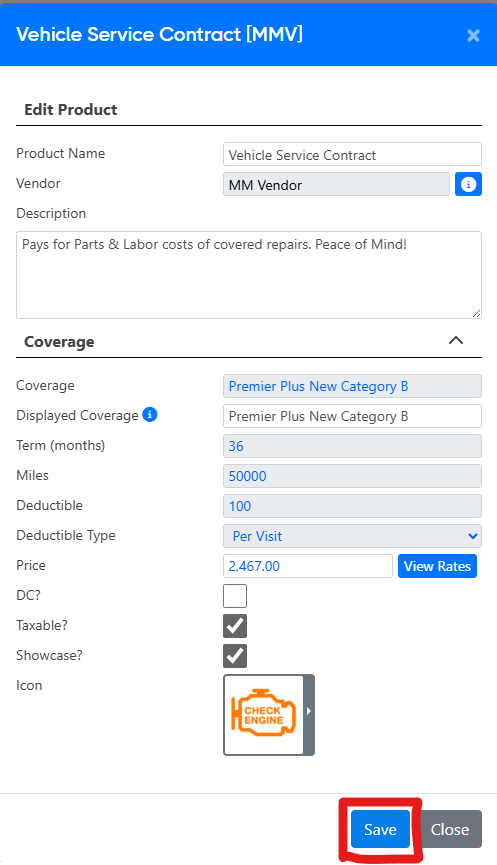
Once you select save after completing the above steps, the updated rates will be applied and you may proceed with contracting.