![MenuMetric_500_130.png]](https://support.menumetric.com/hs-fs/hubfs/MenuMetric_500_130.png?height=50&name=MenuMetric_500_130.png)
Rapid Rate is a tool used to allow Business Managers to pull quick quotes for a customer and then later contract the customer using the ProviderLink Contracting page.
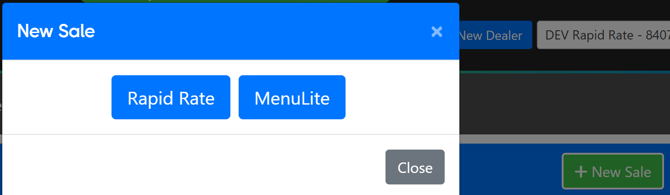
1. You will start by selecting the +New Sale button on either your Dashboard page or your Sales page. A pop-up will appear. Select Rapid Rate.
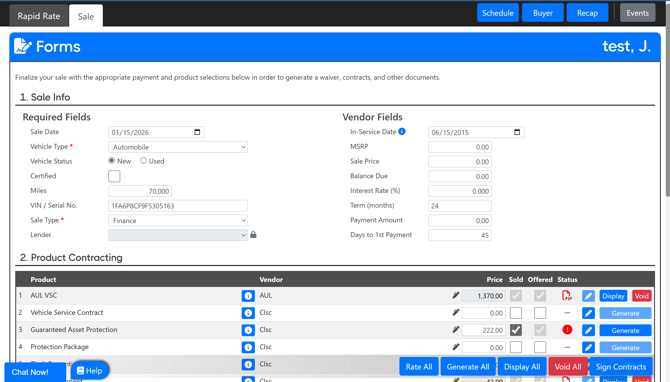
2. The Vehicle Type field will be defaulted to Automobile. You will enter the car's VIN and Miles below that.

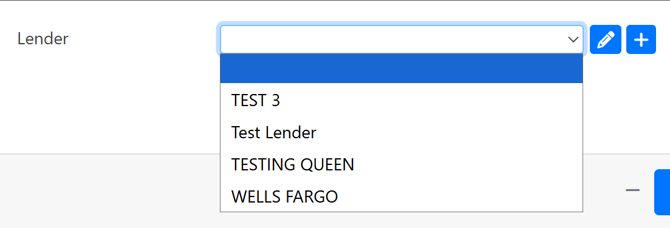
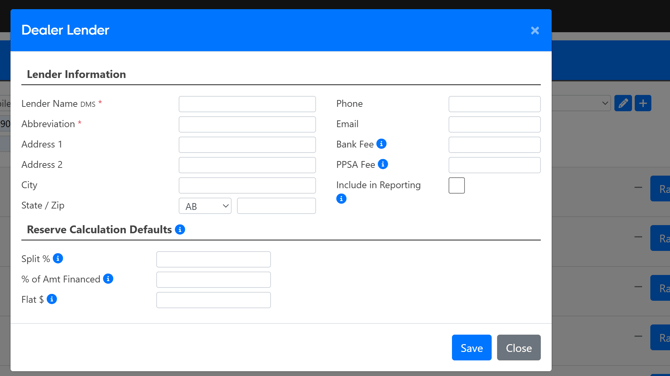
3. If you are rating for either a lease or a finance deal, be sure to select a lender. You can either use the drop-down list to select a lender from previous deals or use the + button to add a new lender. The + button will open a new pop-up where you may enter the lender details.
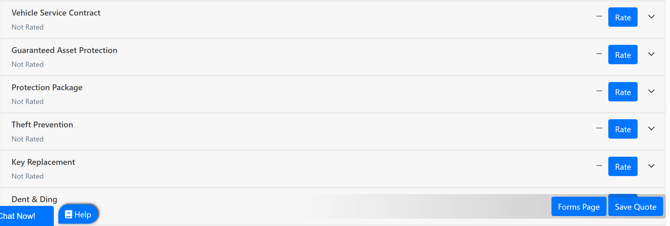
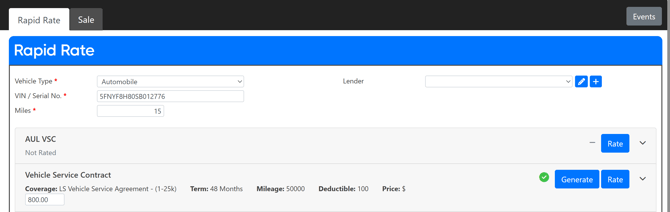
4. Once you have completed the information in the top section, you can move on to the rating section. Your account's products will appear in a list with a Rate button on the right of each product entry. Select the Rate button of the product you would like to quote.
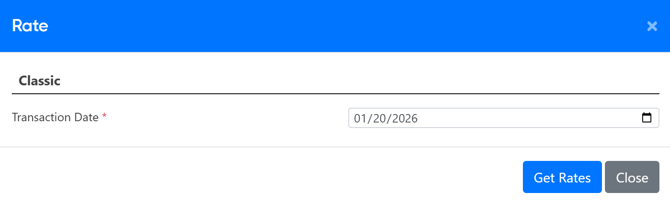
5. A pop-up will appear with that products pre-rating fields. Pre-rating field are any additional required information needed to quote that specific product. The Pre-rating fields will vary from product to product. Once you have completed filling out or verifying the details listed in the pre-rating fields, click Get Rates.
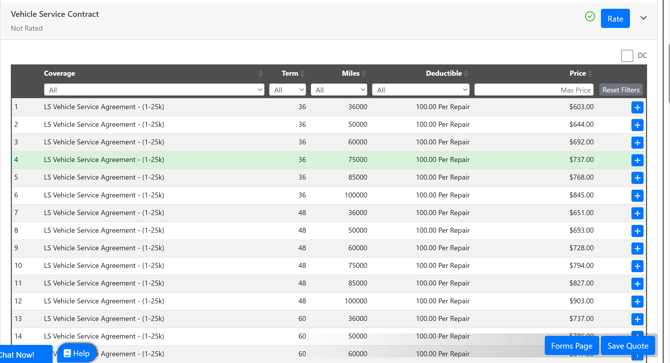
6. A list of the product rates will then appear. You may use the filters found in the top dark grey toolbar to narrow down your search by: Coverage, Term, Miles, Deductible, and Maximum Price. Once you have found the rate you would like to quote to the customer, select it using the + button found on the right side of the coverage entry line.
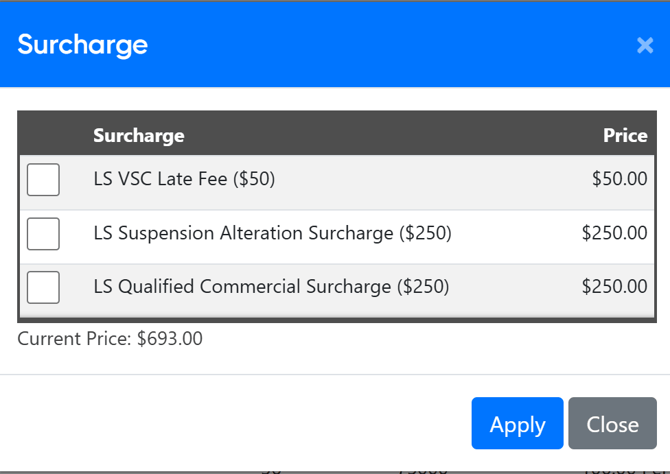
7. Depending on the product and coverage you are selecting, a pop-up with surcharge options may appear. You may select any needed surcharges at this time using the check box. The price of the surcharge will automatically be added to the cost of the product when the Apply button is selected.
8 Your coverage is now selected and you can adjust your retail price as needed in the Price: $ text field.


9. If the customer is not looking to contract right away, you can use the Save Quote button located at the bottom right of the page. It is very important to do this in order to reference your quote for the customer later on in your Sales list.

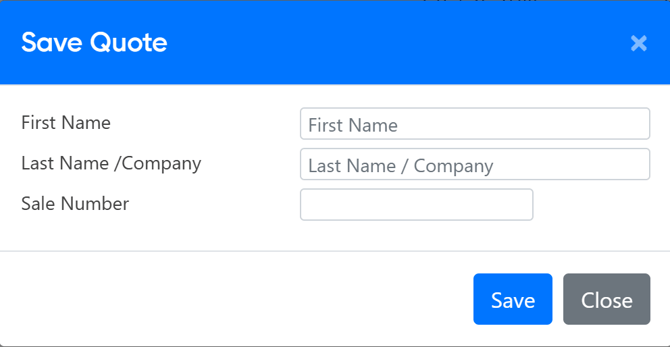
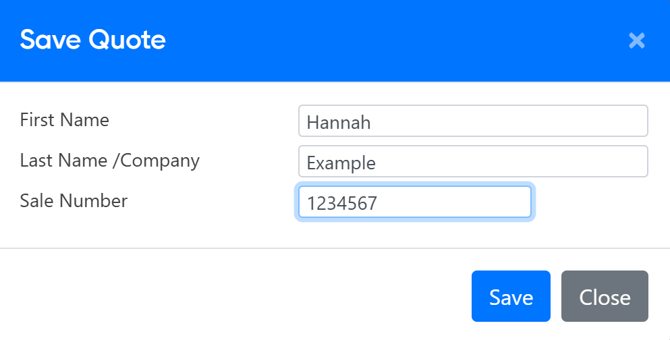
10. A pop-up will appear where you can enter the customer's First and Last Name or their Company Name. You will also input the Sale Number. Select Save when you are done.
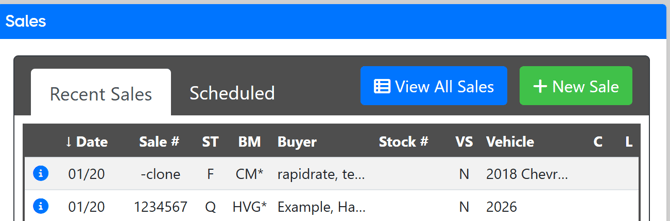
11. Your entry will now appear within your Sales list for future reference. When your customer comes back to purchase the product you quoted them, you can double-click the entry to go back into the deal.
12. You can use the Generate button on the Rapid Rate page to create a contract for your product.
13. At this time, a pop-up will appear where you can enter in the details that are needed to fill out the contract fields.
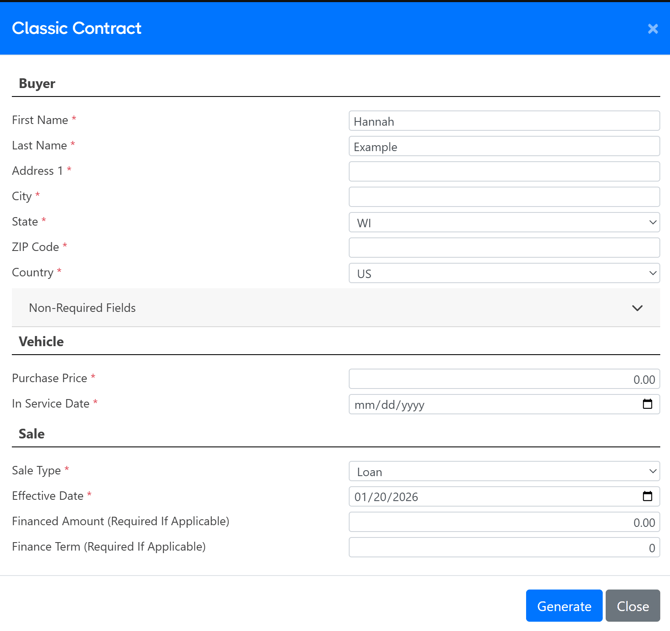
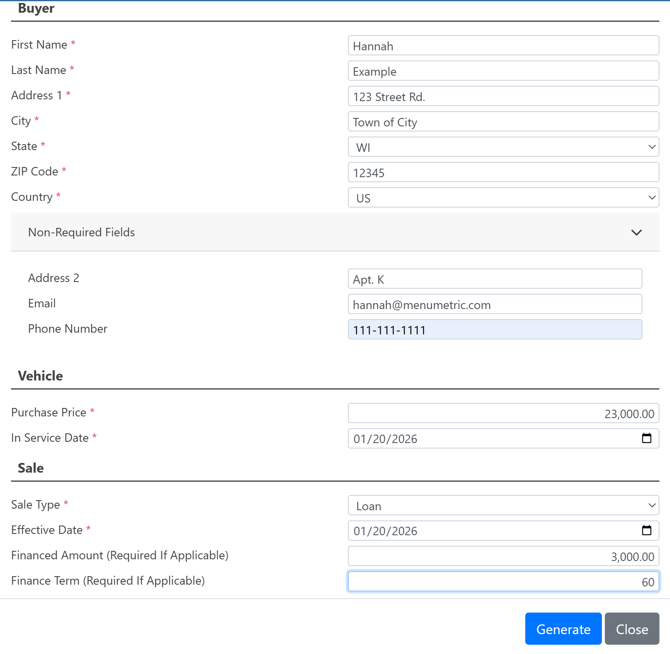
Note: There is a section called Non-Required Fields that you can open using the drop-down. The fields Address 2, Email, and Phone Number will appear. Most contracts do not require this information, but you are able to enter it here as needed.
Note: Finance Amount and Term are not needed when the Sale Type is set to Cash.
14. Once all of the fields you need are filled out, select the Generate button found at the bottom right of the pop-up.
15. You can now display the contract for review using the Display button.

16. For eSigning and closing out any additional deal details, you may proceed out of Rapid Rate to the Forms Page. Follow the ProviderLink article if you are unfamiliar with this page. Click here.